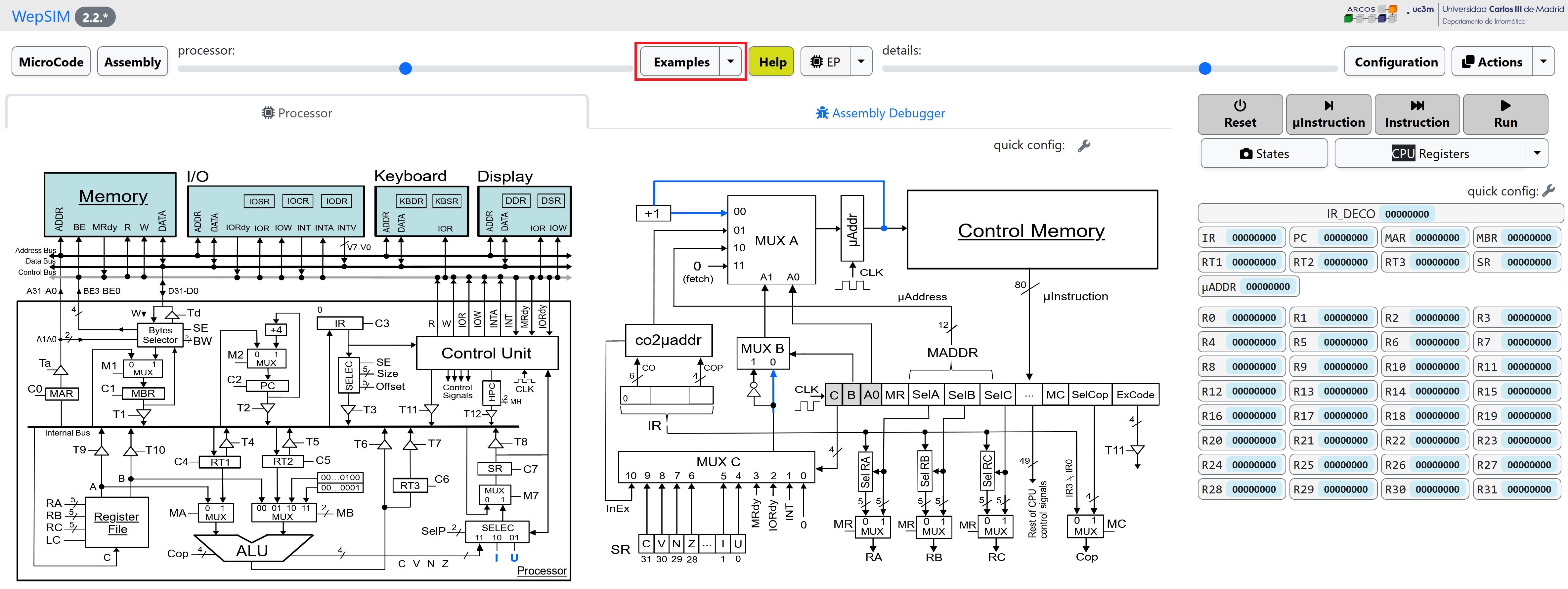
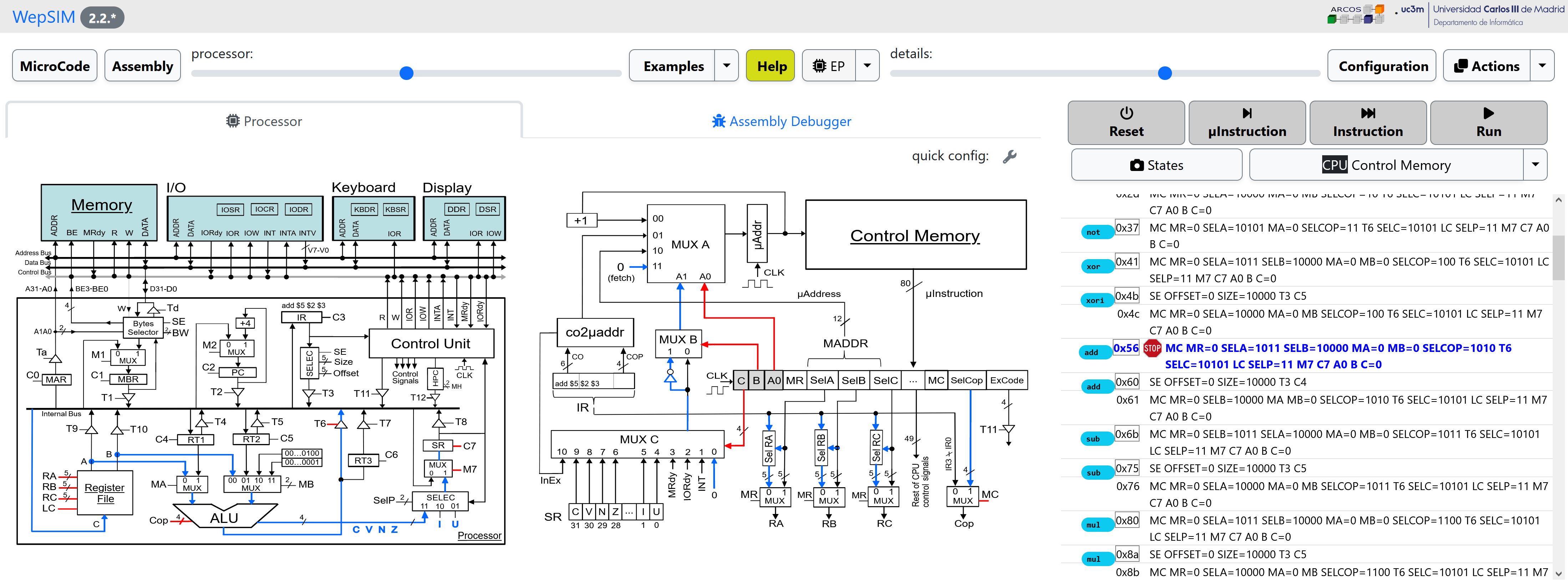
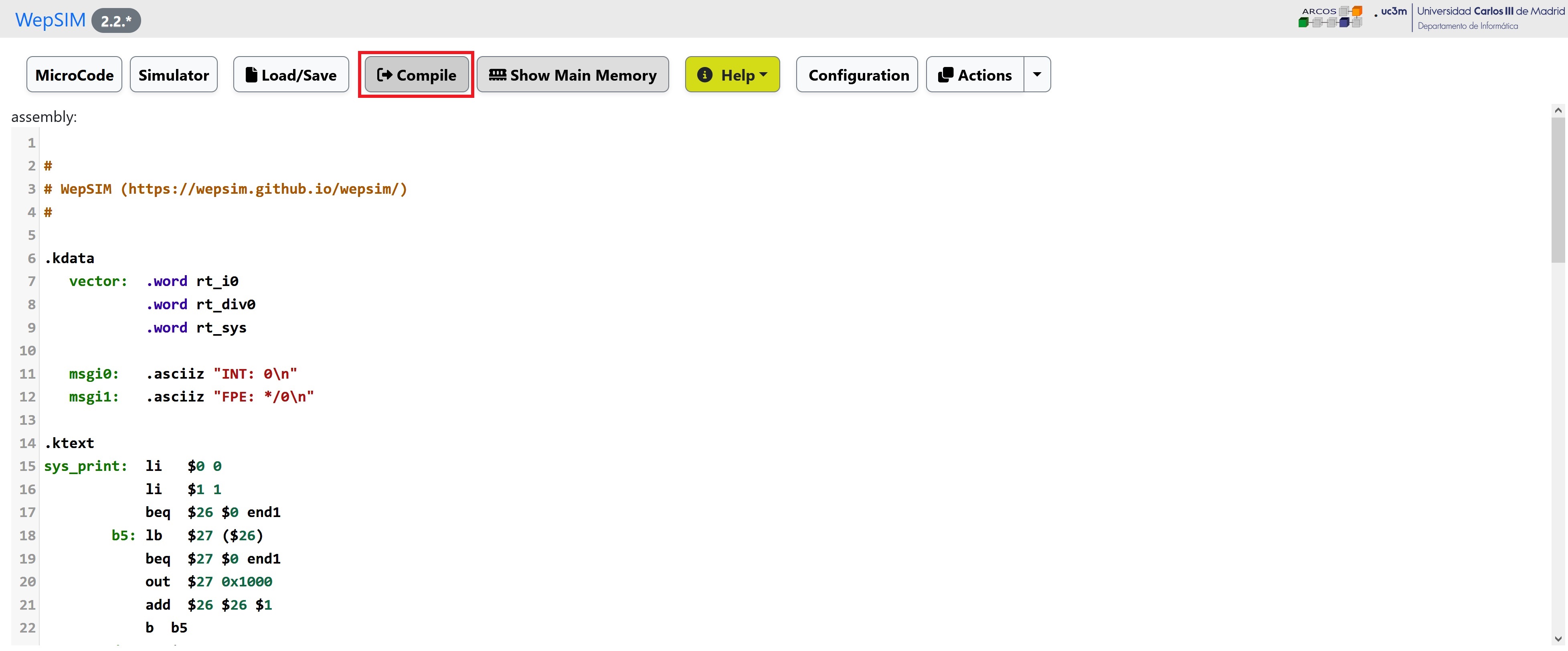
First, we need to load WepSIM in your favorite web browser. Then click on the Examples button to open the Examples dialog:
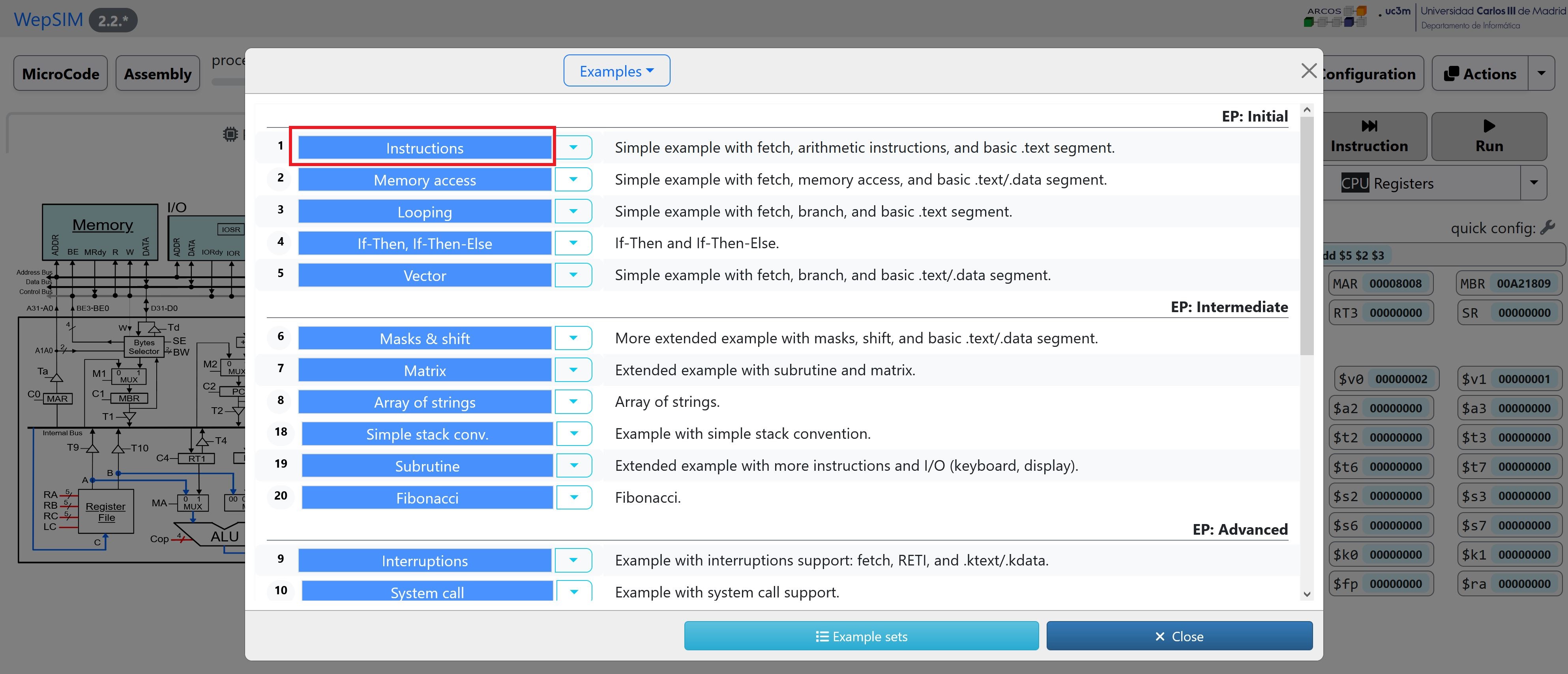
In the Examples dialog, please click on the colored 'title' of the example and WepSIM will load and compile the associated microcode and assembly code:
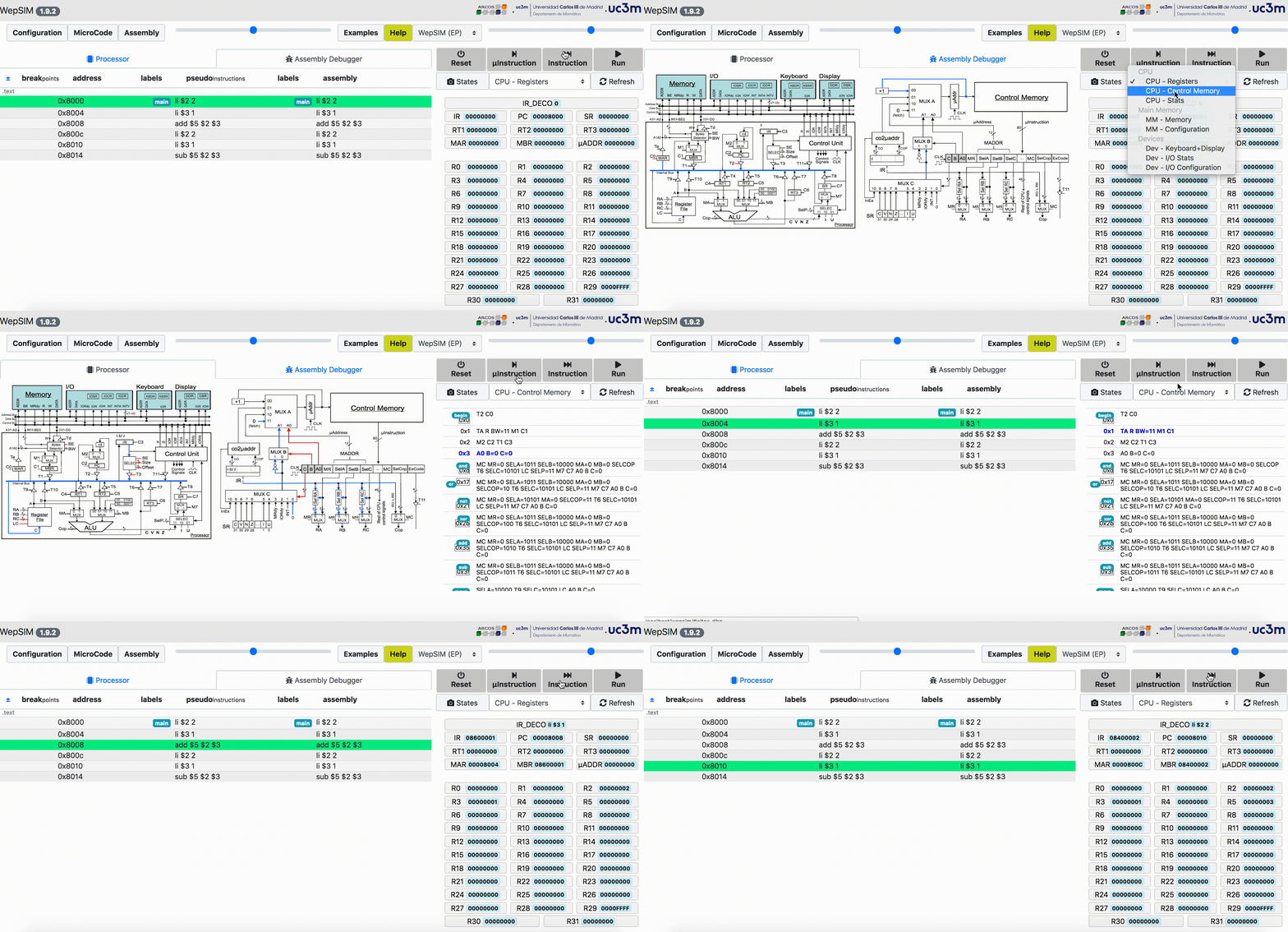
In the simulator workspace you can execute step by step and analyze the state of the components. It is possible to work both, at assembly level or at microcode level:
2. Steps to change the WepSIM configuration
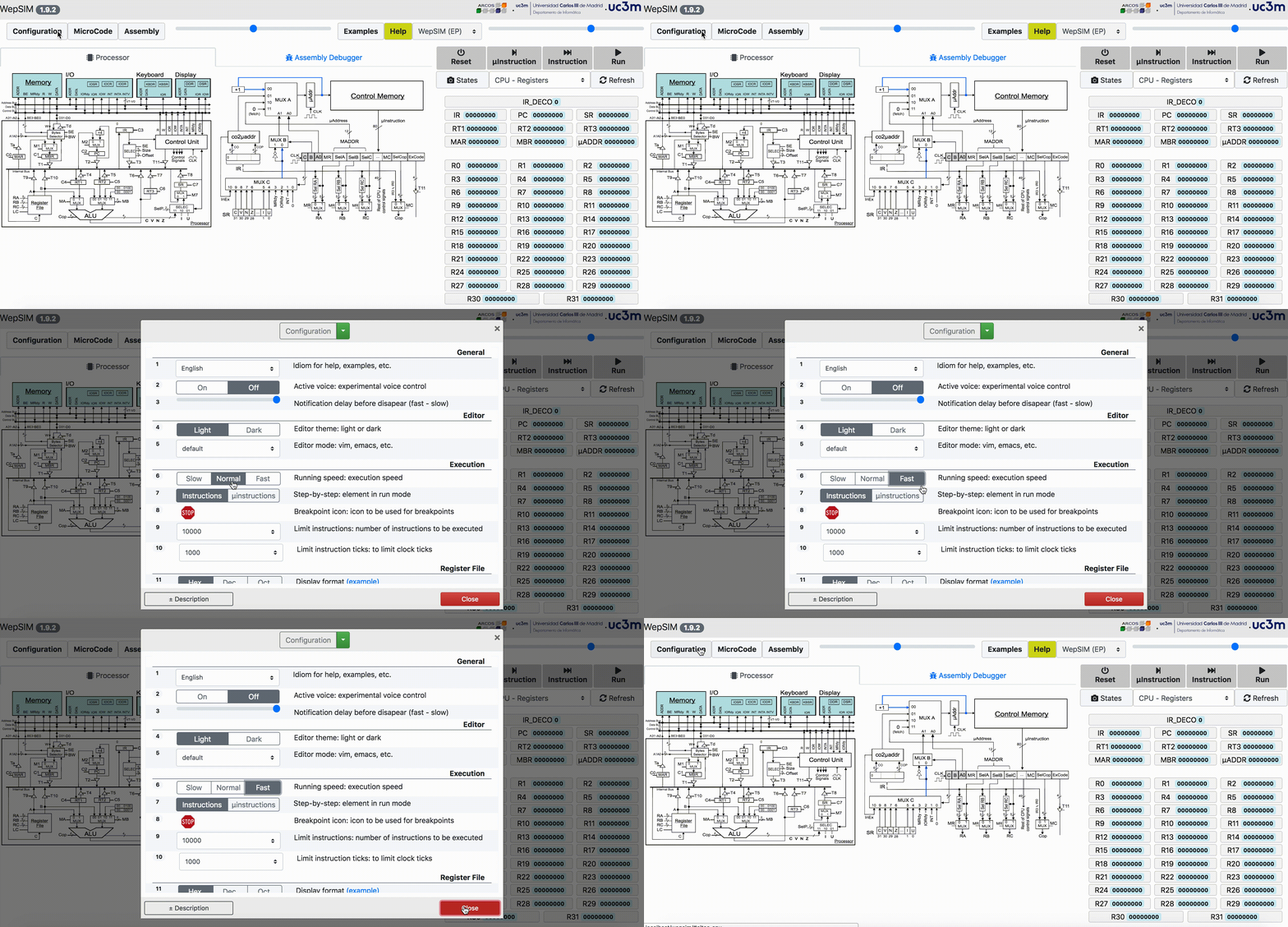
From the general toolbar, the configuration button allows users to personalize several options:
From the general toolbar, please use the left-upper slider to change the CPU/CU size:
3. Typical workflow to modify an existing example or build your own experiment
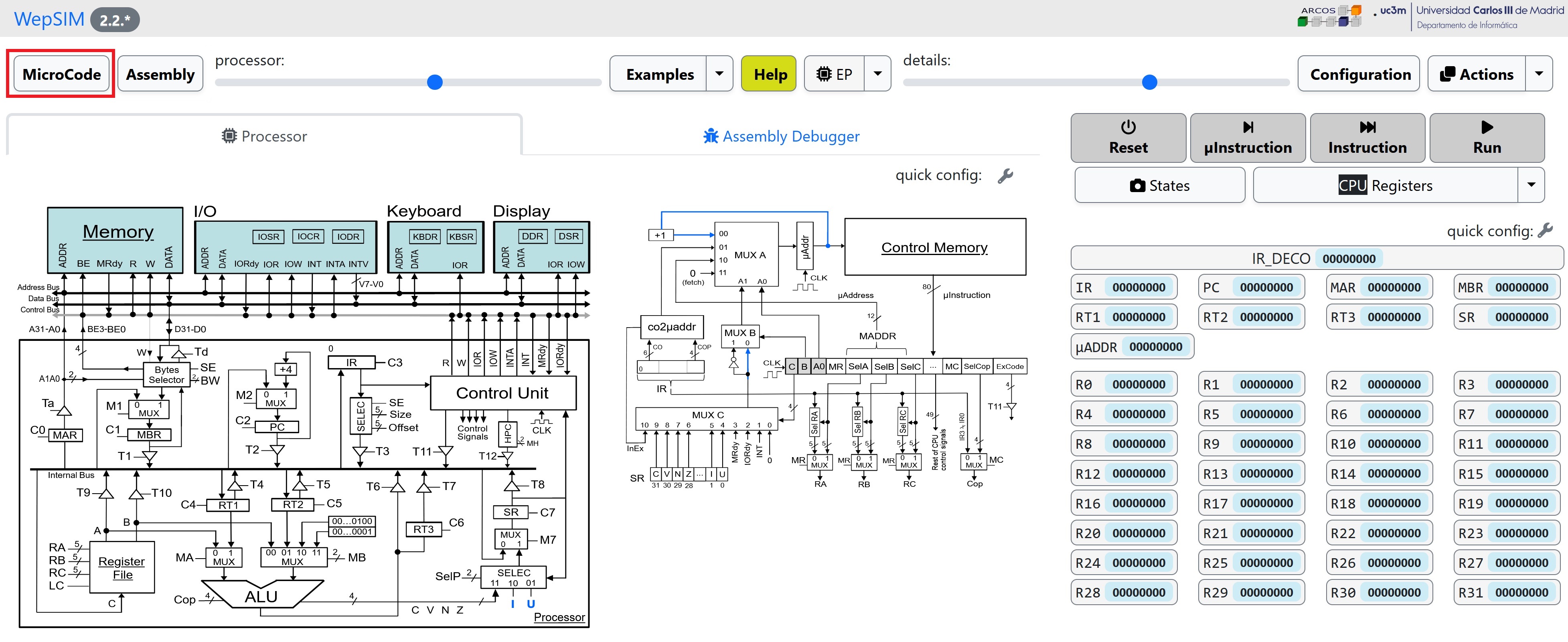
First, we need to load WepSIM in your web browser. Then you should go to the microcode editor workspace:
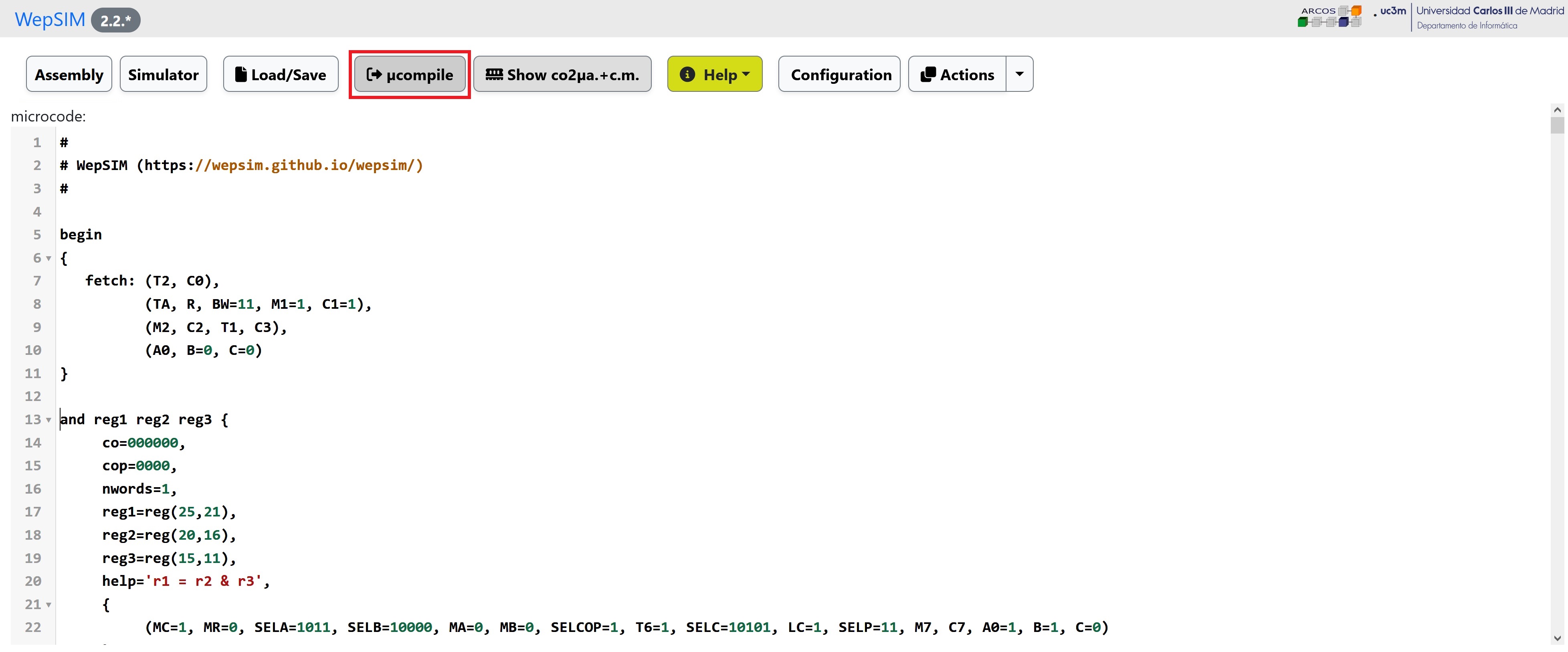
You can load an existing microcode or edit a new one. You have to microcompile the microcode to load the binary into the CPU's control memory:
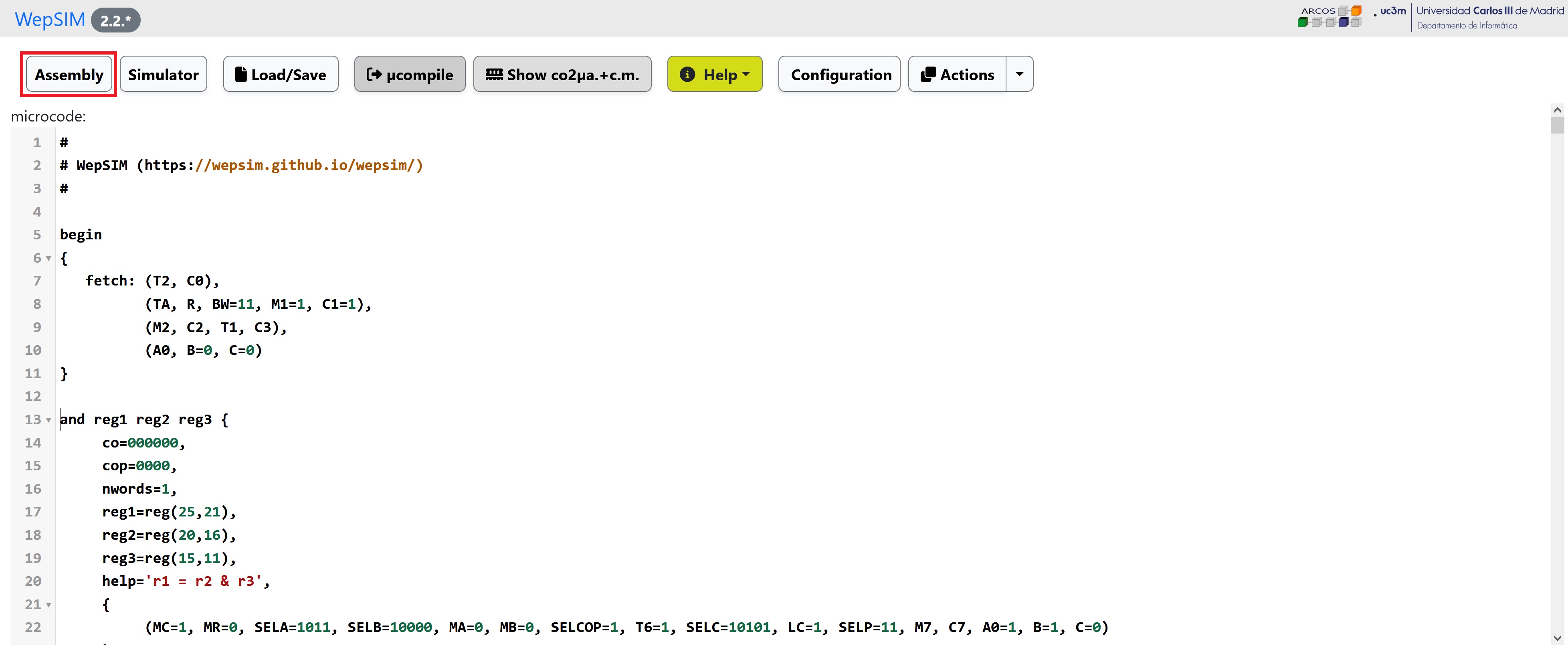
Next, you could go to the assembly editor workspace. In the editor workspace you can load an existing assembly code or edit a new one:
The instructions set defined in the previous microcode is used to create your assembly code. You have to compile the assembly code to load the binary into the main memory:
Finally, go back to the simulator workspace, and you can execute step by step and analyze the state of the components.
It is possible to work at assembly level or at microcode level:
4. Typical steps to use the "State Management" in WepSIM
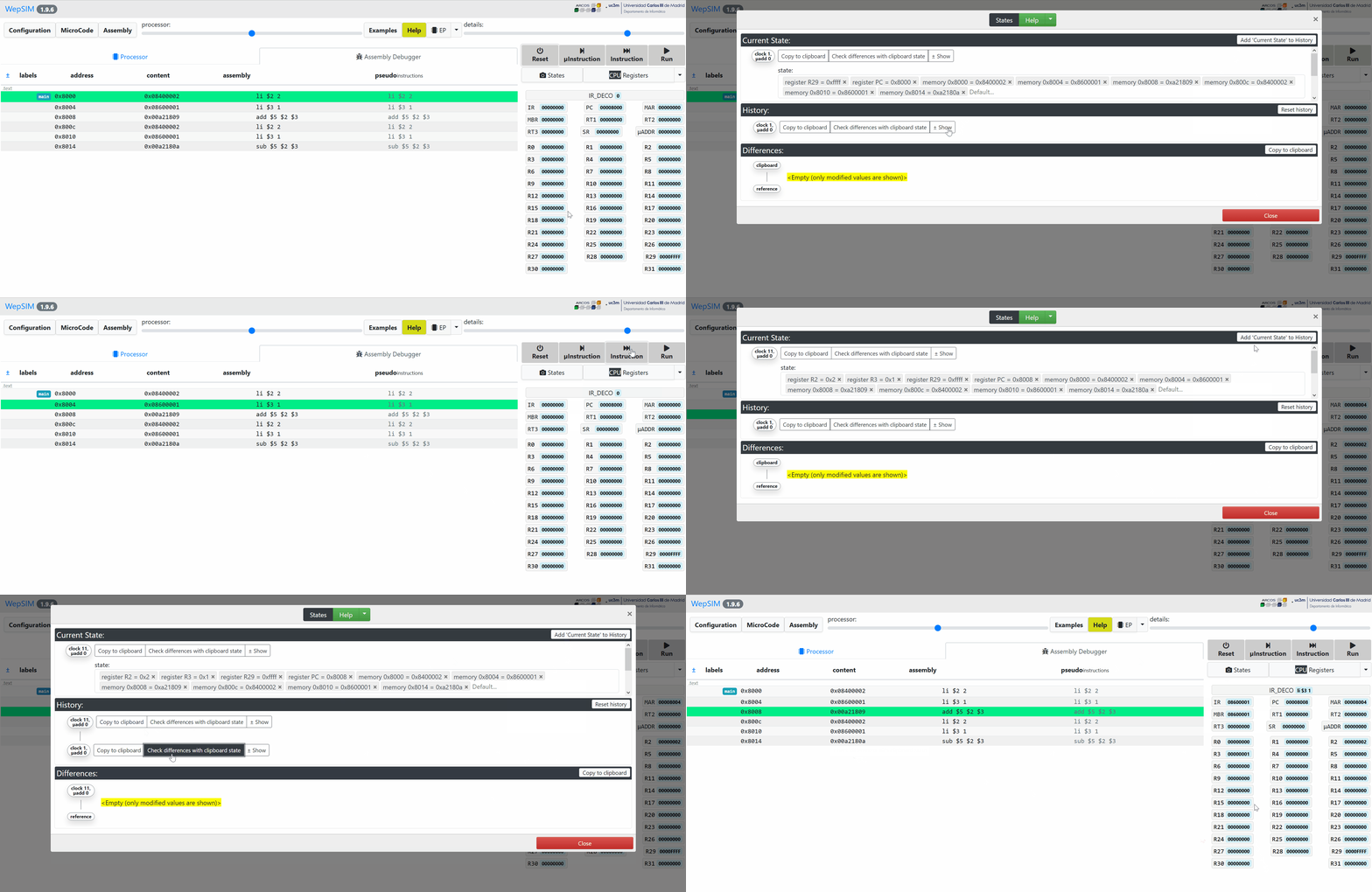
The value of every visible hardware element is the state in a clock cycle. WepSIM has also a 'state management' dialog where users can see the current state, and check the differences between the two states.
From the execution toolbar, please click over the 'state' button to show the state manager dialog: